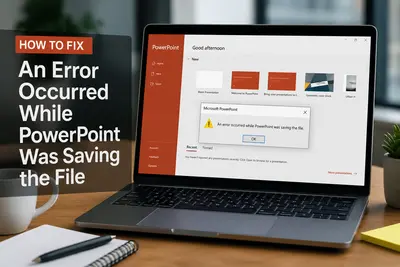

You've just spent hours crafting the perfect presentation — and then PowerPoint hits you with: "An error occurred while PowerPoint was saving the file." Your heart sinks. The good news? This is one of the most common PowerPoint errors, and in the vast majority of cases, it's completely fixable without losing your work.
This guide covers every proven fix, from quick one-minute solutions to deeper repairs, so you can get back to work fast.
Why Does This Error Happen? (Common Causes)
Before diving into fixes, it helps to understand what triggers the "PowerPoint won't save" error in the first place. The most frequent culprits include:
8 Methods to Fix "An Error Occurred While PowerPoint Was Saving the File"
Work through these fixes in order — start with the quick, simple ones before moving to deeper repairs.
Method 1: Check Whether the File Is Open Elsewhere
The simplest cause is often overlooked: if your presentation is already open in another app or another PowerPoint window, that second process can lock the file and block saves.
Close all other applications and check your taskbar for duplicate PowerPoint windows. Once the file is only open in one place, try saving again.
Method 2: Save the File to a Different Location
This is the fastest fix when the error is caused by a blocked, full, or inaccessible save destination (especially common with external drives, USB sticks, or network folders).
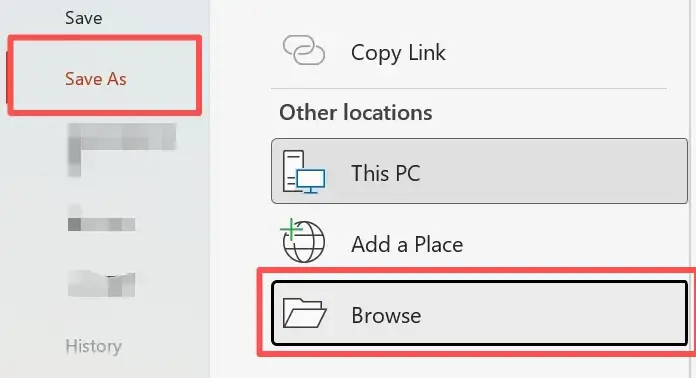
1 Go to File → Save As → Browse.
2Select a folder on your local drive (e.g., Desktop or Documents).
3Click Save.
If this works, your original save location was the problem. You can then move the file to your preferred destination using File Explorer. If you were saving to an external drive, run a disk check on that drive (see Method 8 below).
Method 3: Save in a Different File Format
Sometimes switching file formats temporarily gets around a corrupted element that's blocking the save.
1Go to File → Save As → Browse.
2Click the Save as type dropdown.
3Choose a different format — for example, switch from .pptx to .ppt, or save as a PDF to preserve your content.
4Click Save, then try saving back to your original format afterward.
Method 4: Copy Your Slides to a New Presentation
If the file itself is the problem (corrupted elements, damaged embedded objects), starting fresh with a new file often resolves the issue while keeping all your work intact.
1Open your problematic presentation.
2Click on the first slide in the left sidebar, then press Ctrl + A to select all slides.
3Press Ctrl + C to copy.
4Open a new presentation with Ctrl + N.
5Press Ctrl + V to paste. Choose Keep Source Formatting when prompted.
6Save the new file normally.
Method 5: Sign Out and Back Into Your Microsoft Account
An expired or de-synced Office account session — especially with cloud-connected saves — can cause PowerPoint to fail silently when saving.
1Open PowerPoint, go to File → Account, and click Sign Out under User Information.
2Close and then reopen PowerPoint to refresh the session.
3Sign back into your account and attempt to save your presentation again.
This is particularly effective when saving to OneDrive or SharePoint is failing.
Method 6: Remove ActiveMovie Controls via Visual Basic Editor
This is a less well-known fix, but it solves a specific scenario where presentations containing Visual Basic UserForms with embedded media controls (ActiveMovie Controls) trigger save errors.
1Go to File → Options → Customize Ribbon, check Developer, and click OK. Then, click the Developer tab and select Visual Basic.
2In the VBA editor, go to Insert → UserForm. Afterward, go to File → Remove UserForm and select No when asked to export.
3Close the VBA editor, return to your PowerPoint presentation, and try saving the file again.
Method 7: Clear PowerPoint's Temp Folder
Accumulated temporary files can conflict with new save operations. Clearing them is safe and often fixes persistent save failures.
1Completely close PowerPoint and all other active Office applications to ensure no files are currently in use.
2Press Win + E and navigate to: C:\Users\%username%\AppData\Roaming\Microsoft\Templates\
3Find and delete any files ending in .TMP. Then, reopen PowerPoint and attempt to save your presentation.
💡 Point: If you don't see the AppData folder, go to View → Show → Hidden items in File Explorer.
Method 8: Repair or Reinstall Microsoft Office
If none of the above methods work, the problem likely lies in PowerPoint's own program files.
To repair:
1Open the Control Panel, navigate to Programs, and select Uninstall a Program.
2Find your Microsoft Office installation in the list, right-click it (or select it), and click Change.
3Choose Quick Repair for a fast fix. If the saving error persists, repeat these steps and select Online Repair for a more comprehensive solution.
To reinstall (last resort):
1Press Windows + I to open the Settings menu and navigate to the Apps section.
2Locate your Microsoft Office installation in the list, click the three dots (or select it), and choose Uninstall.
Bonus :Guide to the Best AI Presentation Software
Are you struggling with a presentation theme assigned at school? Or perhaps you're losing sleep over creating slides for a new corporate project?
From engaging presentations for students to professional decks requiring deep expertise and data accuracy, Smallppt—a cutting-edge AI-powered presentation generator—is here to solve all your slide-making headaches at once.
Key Features of Smallppt:
- Unmatched Speed: Generate professional-grade PowerPoint decks in just one minute.
- Total Customization: Beyond AI generation, the platform offers a massive library of free templates, making it perfect for professionals who want full creative control over their designs.
- Intuitive Operation: No complex settings required. Simply interact with the AI to bring your ideal presentation to life.
Stop wasting hours on formatting and start spending your time where it actually matters: refining your ideas and delivery.
See it in Action: "A High Schooler’s Self-Introduction"
Here is how Smallppt works using a simple self-introduction as an example:


Pro Tips: Prevent the Error from Coming Back
Once you've fixed the issue, adopt these habits to stop it from happening again:
Frequently Asked Questions
Q. Can I recover an unsaved PowerPoint file after a crash?
Yes. PowerPoint includes an AutoRecover feature that may help you retrieve unsaved work.
• Go to File → Info → Manage Presentations → Recover Unsaved Presentations.
• You can also check the AutoRecover folder for recent backup versions of your file.
Q. Why can't I save to a specific folder?
This issue is usually related to permissions or storage problems.
• The folder may require administrator access.
• The drive could be full or corrupted.
• Try saving the file to your Desktop or Documents first, then move it afterward.
Q. Does saving to OneDrive or the cloud cause this error?
It can, especially if your internet connection is unstable.
• Errors may occur due to connection interruptions or expired login sessions.
• Save your file locally first, then upload or sync it to the cloud afterward.
Q. What if PowerPoint keeps asking to save changes when I close it?
This usually indicates that something in the file is updating automatically.
• Embedded objects or linked files may be refreshing in the background.
• Disable add-ins and check external links via File → Info → Edit Links to Files.
Q. PowerPoint keeps freezing — what should I do?
Freezing is often caused by add-ins, outdated software, or hardware limitations.
• Disable add-ins via File → Options → Add-ins.
• Ensure Microsoft Office is up to date.
• Check that your system meets PowerPoint’s hardware requirements.
Summary
The "an error occurred while PowerPoint was saving the file" message is frustrating, but it's almost always solvable. Start with the simplest fixes — saving to a new location or copying slides to a fresh file — and work up to the more advanced repairs if needed. With the right approach, you'll have your presentation saved and your workflow back on track in minutes.