
To be honest, even if your presentation is excellent, static slides can still feel dull. This is not criticism; it is human nature.
GIFs exist for this reason. They are easy to use, lightweight, and instantly add personality to your slides.
This guide will show you how to add GIFs to Google Slides and how Smallppt simplifies the process. If you want to learn how to add GIFs to Google Slides easily, this article is for you.
Benefits of adding a GIF to Google Slides
First, understand why GIFs are recommended:
- Animated GIFs stand out more than static content and keep your audience focused.
- Short looping animations explain processes faster than text or images.
- GIFs make presentations more engaging and memorable.
- GIF files are smaller than videos, load faster, and run smoothly.
- Motion helps highlight key data or main conclusions.
With these advantages in mind, using add GIF to Google Slides correctly can quickly upgrade your slides from basic to professional.
How to Insert an Animated GIF in Google Slides
Google Slides offers multiple ways to insert GIFs, making how to add gif to Google Slides simple and common:
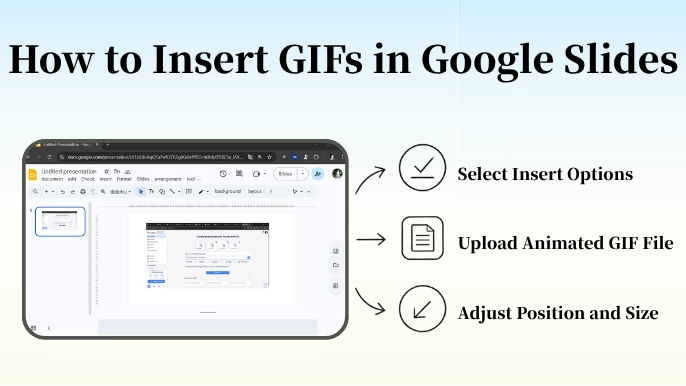
Method 1: Upload from your computer
Open your Google Slides presentation
- Select the slide where you want the GIF

- Click Insert, then Image, then Upload from computer

- Find and select the GIF file, then click Open

- Resize and position the GIF
Method 2: Insert via link
- Find a GIF online, right-click, and copy the image address

- Click Insert, select Image, then By URL

- Paste the GIF link and click Insert

Method 3: Search and insert directly
- Click Insert, select Image, then Search the web

- Type a keyword with GIF in the search box

- Select a GIF and click Insert

Method 4: Insert from Google Drive
- Upload the GIF to Google Drive first

- In Google Slides, click Insert, then Image, then Drive

- Find and select the GIF, then click Insert

This is a complete guide on how to add GIFs to Google Slides. No matter which method you choose, it will help you get the job done. Try it now.
Insert GIFs in One Click with Smallppt
If you want to save time, Smallppt lets you insert GIFs in one click:
1. Generate your presentation in Smallppt

2. Find the Insert Image button in the sidebar

3. Select your GIF and click Insert
After that, you can resize freely. Smallppt offers many high-quality templates to make your slides more engaging.
FAQs about Inserting Animated GIFs in Google Slides
Q1: What should I do if the GIF becomes blurry after resizing?
Low-resolution GIFs lose quality when enlarged. Use high-quality GIFs and avoid over-scaling.
Q2: Can I control GIF playback time?
GIFs are not videos, so playback controls are not supported.
Q3: Why does a GIF inserted via a link not display?
Make sure you are using a direct .gif file link, not a webpage URL.
Q4: Why does the GIF loop too fast or not loop at all?
Loop settings are defined in the GIF file itself. You can edit them using a GIF editing tool.